Export
Export turns your developed images into finished files. The dialog lets you pick a format, set a resolution cap, apply an optional shared crop to every selected image, and resolve filename collisions — all rendered through the same pipeline as the live preview in Frame.
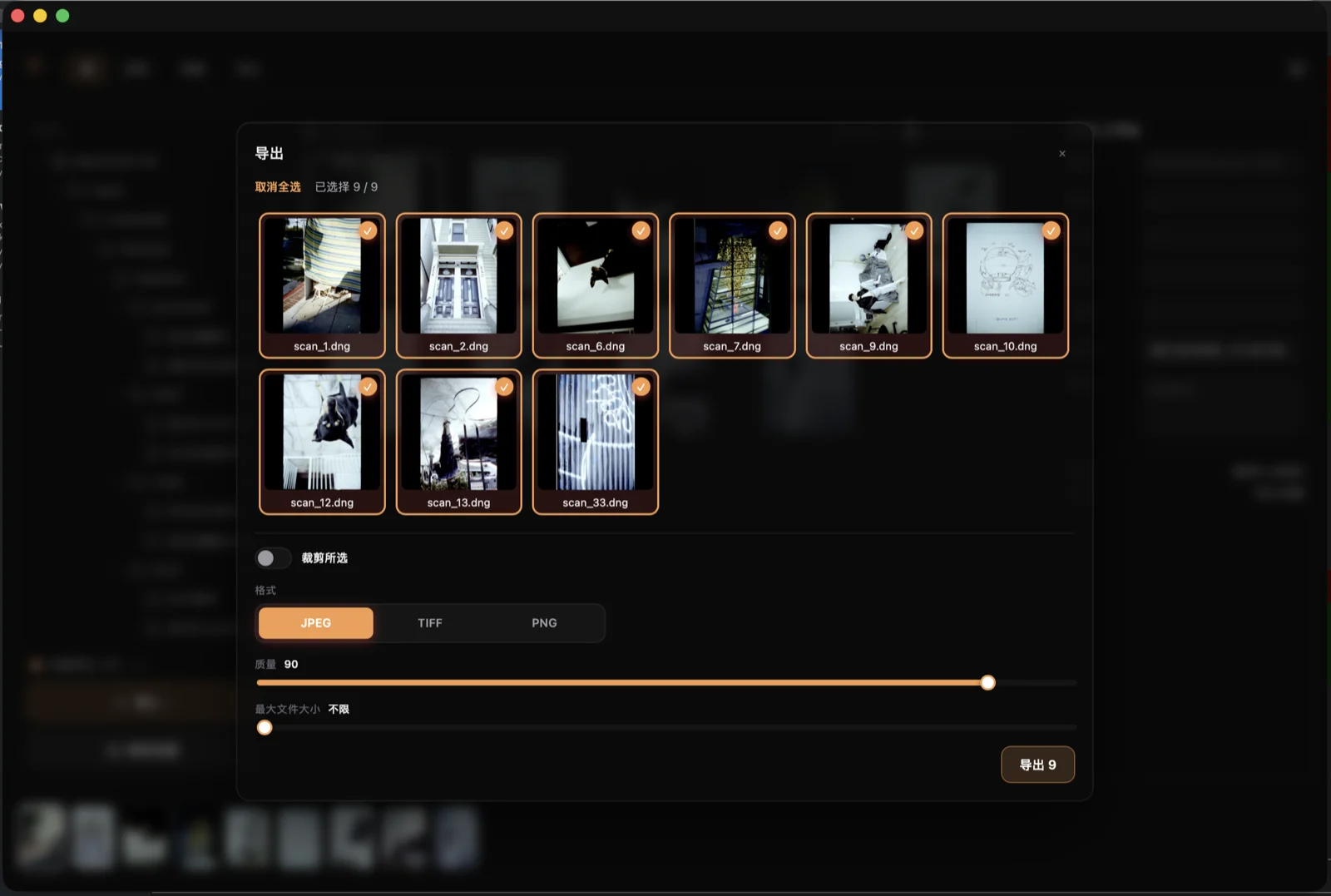
Formats
The format segmented control at the top of the export panel offers three choices: JPEG, TIFF, and PNG. Each maps to a distinct branch of the ExportFormat interface (kind: "jpeg" | "tiff" | "png").
JPEG exposes two sliders. The Quality slider (quality, 1–100) controls the JPEG compression level; the default is 90. The Max size slider (maxBytes) is an optional file-size ceiling: drag it above zero to cap the output at that many megabytes. When set, the backend re-encodes at progressively lower quality until the file fits. Leaving the slider at zero means unlimited (maxBytes: null).
TIFF and PNG share a Bit depth control (bitDepth: 8 | 16). Choosing 16-bit preserves the full precision of the render and is the default. 8-bit halves the file size at the cost of quantization in smooth gradients. The bitDepth field is not set for JPEG exports, where it is always implied 8-bit by the container.
Resolution
The Resolution control caps the longest side of the output in pixels. Three preset buttons cover the most common sizes — Full (no downscale), 4096 px, and 2048 px — plus a Custom mode that reveals a free-form pixel input. The chosen value is passed to the backend as resizeLongEdge; the backend scales the image down so its longest edge equals that value, preserving the original aspect ratio. Selecting Full (or entering 0) sets resizeLongEdge: null and exports at the native resolution.
The cap is applied after crop and rotation: if a portrait image is cropped to square and then exported at 2048 px, the output is 2048 × 2048. Upscaling is never performed — if the native long edge is already shorter than the cap, the file is exported at native size.
Batch crop
The Crop selected toggle in the export panel enables a single shared crop that is applied to every selected image at export time. When the toggle is off, each image uses its own saved crop from the Crop & Dust panel — or no crop at all if none was set.
When you turn the toggle on, a crop preview and the full set of crop controls (aspect ratio presets, rotation, flip, straighten angle) appear. The preview targets the first selected image in display order. The crop is seeded from that image's committed crop if one exists, or from a full-frame default otherwise. Changing which images are selected does not re-seed the draft; the controls remain stable as you adjust the selection.
The resolution logic is handled by resolveCrop in batchCrop.ts: when batch mode is on it returns the shared draft as a committed CropRect; when off it returns each image's own stored CropRect (or null for uncropped images). Per-image saved crops are left completely untouched by the export — the batch crop is not written back to the catalog.
Collision handling
Before writing any file, the export resolves all output paths upfront and checks which ones already exist on disk. For each conflicting filename, a prompt appears with four options:
- Overwrite — replace the existing file.
- Skip — leave the existing file untouched and omit this image from the export.
- Keep both — the backend generates a unique filename (e.g.
frame-1.jpg→frame-1 (2).jpg) so both files coexist. - Cancel — abort the entire export run immediately; no files have been written yet at this stage.
When there are multiple conflicts, the prompt shows "Conflict N of M" and an Apply to all remaining checkbox. Checking it before dismissing the prompt reuses the chosen action for every subsequent conflict in this run, so a large batch doesn't require repeated manual choices.
Skipped images are not counted in the final "Exported N images" summary; they are reported separately as "N skipped." If every selected image is skipped, the export completes with zero files written and shows the skipped count.
GPU/CPU export parity
Export renders through the same pipeline as the live preview. A dedicated offscreen FinishRenderer (the same WebGL shader used by the Frame viewport) runs the full inversion and finish pass — the result is pixel-accurate to what you see on screen. The GPU path is used whenever WebGL is available and the image fits within the device's maximum texture size.
If the GPU path is unavailable — no WebGL support, an oversized image that exceeds the texture limit, or a runtime GL error — the export falls back to the CPU path transparently. The CPU fallback uses the same inversion parameters and produces the same result; it is simply slower for large files. You do not need to take any action to trigger the fallback; it happens automatically.
Export processes up to four images concurrently. The GPU render step is synchronous (atomic per image), so concurrent workers cannot interleave their GPU calls; they overlap only on the async decode and encode steps handled by the backend.
Under the hood
ExportFormat (defined in api.ts): kind: "jpeg" | "tiff" | "png"; bitDepth?: 8 | 16 (TIFF/PNG only); quality?: number (JPEG only, 1–100); maxBytes?: number | null (JPEG only — backend re-encodes at decreasing quality steps until the file is at or below this byte count); resizeLongEdge?: number | null (null or 0 → full resolution).
Eligible images: the export dialog lists only the developed images within the current folder scope (developedFolderImages in eligible.ts). Images that have been imported but never opened in Frame are not offered for export. The selection is initialized from the current grid/filmstrip selection restricted to the eligible set; if none of the selected images are eligible, the dialog selects all eligible images.
Output filename: outName in naming.ts replaces the source extension with the target format's extension (jpg for JPEG, tiff for TIFF, png for PNG) while keeping the original stem. For example, SCAN_0042.tif exported as JPEG becomes SCAN_0042.jpg.
GPU export flow: api.exportBegin decodes the raw on the Rust backend and returns pixel data plus the computed InvertParams uniforms; api.exportPixels transfers the raw pixel buffer; the offscreen FinishRenderer runs renderExport (inversion + finish shaders); api.exportFinish encodes the rendered buffer to the chosen format and writes the file. The rendered buffer that renderExport hands to exportFinish is a Float32Array for 16-bit TIFF/PNG and a Uint8Array for 8-bit output (the raw scan uploaded by exportPixels is a separate integer buffer). The CPU fallback (api.exportImage) runs the equivalent pipeline entirely in Rust.
Concurrency: a bounded worker pool of 4 (CONCURRENCY = 4) runs exports in parallel. The synchronous GPU render step (renderExport) is never awaited concurrently — each worker claims its next image with a synchronous index increment before any await, so GPU calls from different workers never interleave.
HDR export: when wantsHdrExport(kind, params) returns true (gain-map JPEG for HDR tone-mapped content), the GPU/SDR path is skipped entirely and api.exportImageHdr performs a dual-render on the Rust backend. This path is separate from the standard export flow described above.